OAuth / OIDC
Since v3.2.0, BorgWarehouse supports OAuth and OpenID Connect (OIDC) sign-in. You can allow users to log in with GitHub, Google, Microsoft, GitLab, or any OIDC-compatible provider (Authentik, Keycloak, Zitadel…).
How it works
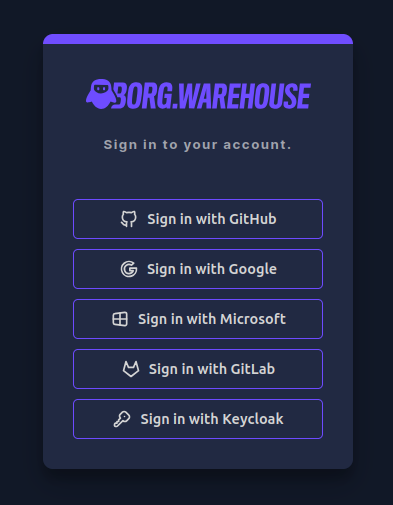
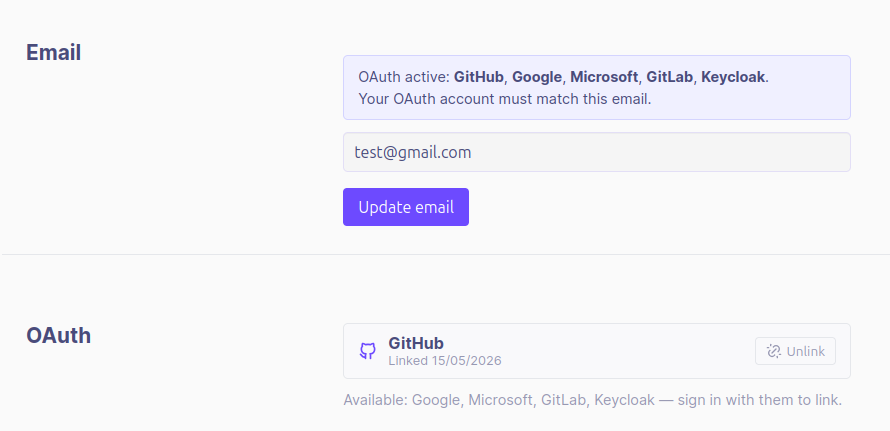
When one or more OAuth providers are configured, a sign-in button for each provider appears on the login page. Users can also link and unlink OAuth accounts from their account settings, allowing them to sign in with either their password or their linked OAuth identity.
Supported providers
GitHub
- Go to GitHub Developer Settings → OAuth Apps → New OAuth App.
- Set the Authorization callback URL to:
https://your-borgwarehouse-url/api/auth/callback/github - Copy the Client ID and generate a Client Secret.
- Add to your
.env:
GITHUB_CLIENT_ID=your-client-id
GITHUB_CLIENT_SECRET=your-client-secret
- Go to Google Cloud Console → APIs & Services → Credentials → Create Credentials → OAuth 2.0 Client ID.
- Set the Authorized redirect URI to:
https://your-borgwarehouse-url/api/auth/callback/google - Add to your
.env:
GOOGLE_CLIENT_ID=your-client-id
GOOGLE_CLIENT_SECRET=your-client-secret
Microsoft (Azure AD / Entra ID)
- Go to Azure Portal → Azure Active Directory → App registrations → New registration.
- Set the Redirect URI to:
https://your-borgwarehouse-url/api/auth/callback/microsoft - Copy the Application (client) ID and create a Client Secret under Certificates & secrets.
- Add to your
.env:
MICROSOFT_CLIENT_ID=your-client-id
MICROSOFT_CLIENT_SECRET=your-client-secret
# Optional: restrict to a specific tenant (defaults to "common" - all Microsoft accounts)
MICROSOFT_TENANT_ID=your-tenant-id
GitLab
- Go to your GitLab instance → User Settings → Applications → Add new application.
- Set the Redirect URI to:
https://your-borgwarehouse-url/api/auth/callback/gitlab - Select the
read_userscope. - Add to your
.env:
GITLAB_CLIENT_ID=your-client-id
GITLAB_CLIENT_SECRET=your-client-secret
Generic OIDC (Authentik, Keycloak, Zitadel, etc.)
Any OIDC-compliant provider is supported via the generic OIDC integration.
- In your provider, create a new OAuth2 / OIDC application.
- Set the Redirect URI to:
https://your-borgwarehouse-url/api/auth/callback/oidc - Ensure the application exposes the
openid,email, andprofilescopes. - Add to your
.env:
OIDC_CLIENT_ID=your-client-id
OIDC_CLIENT_SECRET=your-client-secret
OIDC_ISSUER_URL=https://your-provider.example.com/application/o/borgwarehouse
# Optional: customize the button label on the login page (default: "SSO")
OIDC_PROVIDER_NAME=Authentik
OIDC_ISSUER_URL must expose a standard /.well-known/openid-configuration discovery endpoint. BorgWarehouse appends this path automatically.Disable password login (OAuth-only mode)
If you want to enforce OAuth-only sign-in and disable username/password login entirely:
DISABLE_PASSWORD_LOGIN=true
Sessions
Session lifetime
Sessions are stored in a SQLite database (config/better_auth.sqlite). The default session lifetime is 1 hour. You can change it with:
# Duration in seconds. Examples:
SESSION_EXPIRY_SECONDS=3600    # 1 hour (default)
SESSION_EXPIRY_SECONDS=28800   # 8 hours
SESSION_EXPIRY_SECONDS=86400   # 24 hours
Session revocation
Session revocation is done via a CLI script that revokes all active sessions at once, forcing every user to log in again. This is useful after a security incident, a password change, or a suspected compromise.
Baremetal:
pnpm revoke:sessions
Docker:
docker exec borgwarehouse pnpm --dir /home/borgwarehouse/app revoke:sessions
Trusted origins
If BorgWarehouse is served behind a reverse proxy or from multiple domains, you may need to declare trusted origins to avoid CSRF rejections:
BETTER_AUTH_TRUSTED_ORIGINS=https://borgwarehouse.example.com,https://bw.local
Account linking
Users can link multiple OAuth providers to the same BorgWarehouse account. Go to Account Settings → Linked accounts to link or unlink providers.